User guide
How to Factory Reset Rokid Glasses
When do you need a factory reset?
Factory reset your Rokid Glasses when you need to:
- Pair the glasses with a different phone
- Gift or resell your glasses to someone else
- Clear all data currently stored on the glasses
- Remove the link to your old Rokid account — each pair of glasses can only be linked to one account on one device at a time
Before you start: a factory reset erases all photos, videos, and settings stored on the glasses. Back up anything you want to keep before continuing.
Method 1 — Reset from the Hi Rokid app home screen (recommended)
This is the fastest and simplest method — the one we recommend.
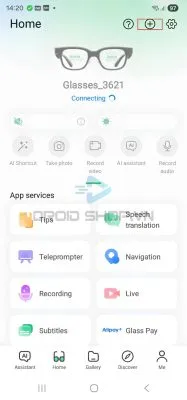
- Open the Hi Rokid app and tap the "+" icon in the top-right corner of the home screen.
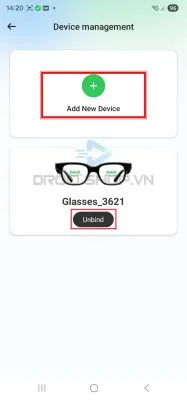
- Tap "Unlink", then select "Add new device".
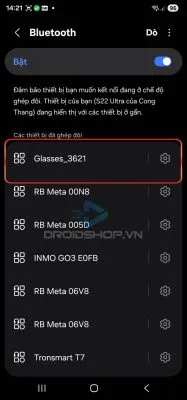
- Open your phone's Bluetooth settings and tap the glasses' name from your previous connection.
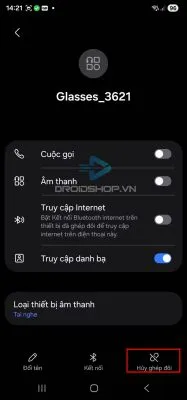
- Tap "Forget device" to remove the old Bluetooth pairing.
- Back in the app, select the exact glasses model you're using to pair again.
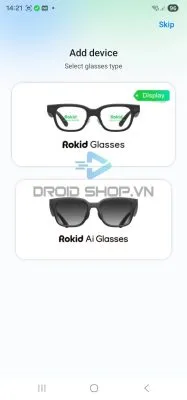
- Tap the search button so the app can scan for the device.
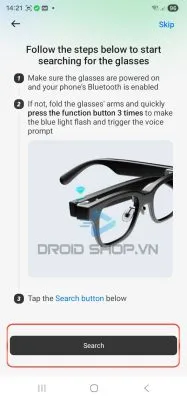
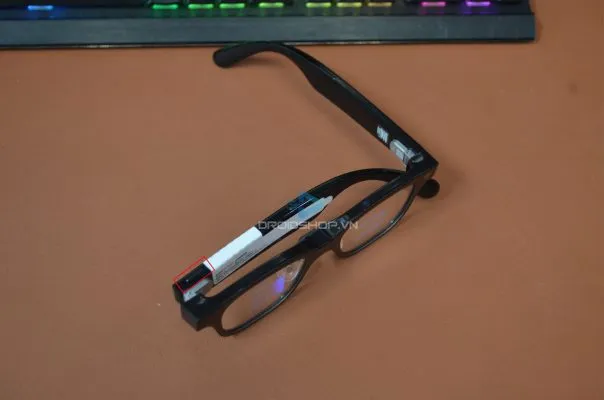
- On the glasses: fold in the right temple, then press the camera button 3 times in a row until the indicator light turns blue (pairing mode).
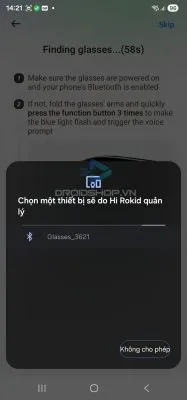
- When the glasses appear in your phone's Bluetooth list, tap to connect, confirm the pairing request, and wait about 10 seconds. You can skip the app's usage tutorial that appears — the factory reset is now complete.
Method 2 — Reset from the app's Settings menu
Use this method if you'd rather not go through the "Unlink" step on the home screen.
- Tap the gear (Settings) icon in the top-right corner of the app.
- Scroll down and select "Factory reset".
- Read the on-screen notes carefully before continuing.
- Tap Confirm to proceed.
- Then go to your phone's Bluetooth settings and forget the glasses, same as steps 3–4 in Method 1, and pair again as usual.
Both methods produce the same result — Method 1 is faster because it combines unlinking and re-pairing into a single flow.
Need more help?
If you run into any issues, contact DroidShop.VN at 0853 99 99 88, via Zalo, or at support.droidshop.vn for direct assistance.